 Shaan Hurley
 Most serious CAD problems do not start with a crash. They start with a simple mistake that looks harmless.
One of the most common is opening a Civil 3D file in the wrong version.
The DWG misconception
DWG files open across AutoCAD versions from 2018 through 2026. That does not mean Civil 3D data inside those files is compatible.
The DWG is only the container. The Civil 3D objects inside it are version specific.
A file can open successfully and still be damaged.
What lives inside a Civil 3D drawing
Civil 3D drawings contain custom AEC objects that go beyond standard AutoCAD geometry. These include:
- Alignments
- Profiles
- Surfaces
- Corridors
- Pipe networks
- Pressure networks
- Assemblies
- Feature lines
- Sample lines and section views
- Grading objects
- Parcels
These objects are not backward compatible.
What happens when versions are mixed
A drawing is created and saved in Civil 3D 2024 or an older 2022 drawing opened and converted in the background. Everything works as expected.
That same drawing is later opened in Civil 3D 2022.
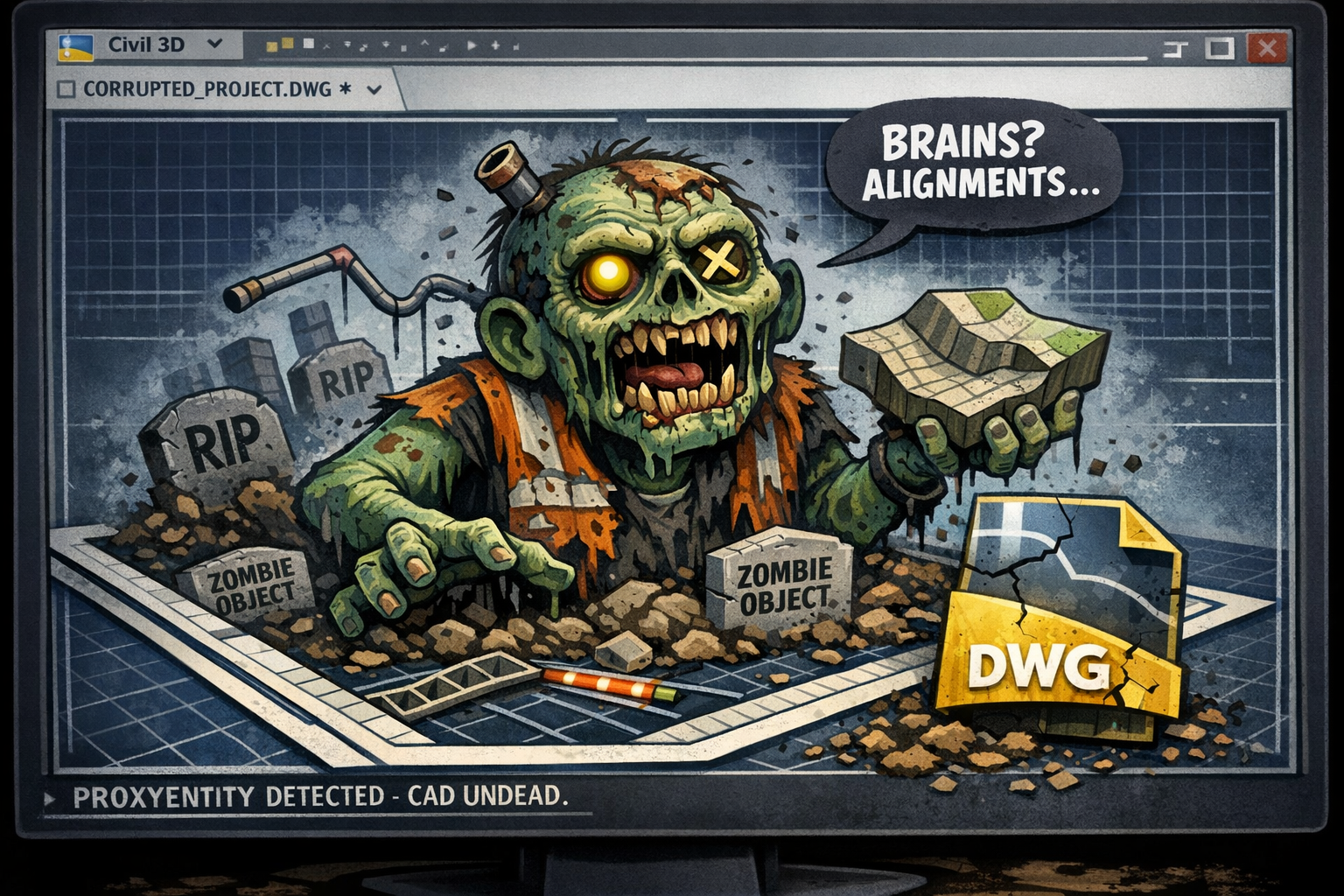
Civil 3D 2022 does not understand newer object definitions implemented in the newer version like 2024, so it converts them into proxy objects (previously called zombie objects)—visual representations of objects that are not native to that version and require conversion.
The file still opens. That is where the problem begins.
When the file is later reopened in Civil 3D 2024, the software attempts to rebuild the original objects from the proxy representations. This reconstruction often fails.
The fallout
- Files become slower every time they are opened
- Editing operations lag
- Regens take longer
- Object properties are lost
- References and data shortcuts break
- Surface corruption appears later
The most dangerous part is timing. The damage is often not obvious until weeks or months later, when rework is expensive and disruptive.
This is not just Civil 3D
The same risk exists in other AEC products that rely on custom object types:
- Plant 3D
- Map 3D
- AutoCAD Architecture
If versions are mixed, the risk is the same.
The rule that protects projects
One project One Civil 3D version for the entire lifecycle
This is not a preference. It is a data integrity requirement.
You cannot open a project file in an older version just to review it or because that version happens to be installed. Opening and saving a file once is enough to introduce corruption.
When projects upgrade versions
There are cases where an entire project can move to a new Civil 3D version together.
A common example is during a coordinated upgrade, such as a Civil 3D 2026 rollout.
In these cases, everyone on the project must upgrade at the same time and use the same version. Partial upgrades are not allowed. A single user remaining on an older version creates the same corruption risk.
If a project plans to upgrade midstream, that decision must be deliberate, coordinated, and agreed to by the full project team before any files are opened or saved.
Working with clients and partners
Version discipline does not stop at DOWL.
When collaborating with clients, sub consultants, or external partners, Civil 3D version alignment must be confirmed early and communicated clearly.
If a partner opens project files in a different Civil 3D version, they can introduce proxy object corruption back into our environment, even if our internal team is fully aligned.
When starting or joining a collaborative effort, project teams are expected to:
- Confirm the Civil 3D version used by all parties
- Communicate that version clearly during project setup
- Request confirmation that versions will not be mixed
If there is uncertainty about a partner’s version or their ability to match the project standard, pause and involve the project manager or CAD team before exchanging editable files.
Before you open a file
- Confirm the project Civil 3D version
- Do not assume
- Do not open files just to look
- If unsure, stop and ask