

No longer are you limited to a single line text attributes, you can now create and use multiline attributes "MATTs". The MATTs also get a very nice set of special formatting options in a MText like editor.

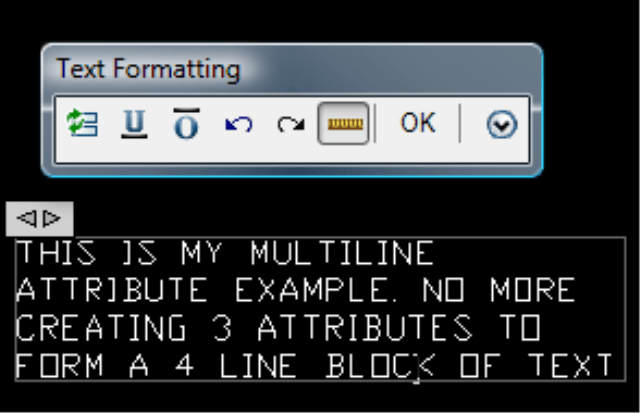

To create a multiline attribute definition
- Click Draw menu > Block > Define Attributes….
or at the Command prompt, enter ATTDEF - In the Attribute Definition dialog box, under Mode, select Multiple Lines.
- Enter tag information, location, and text options.
- (Optional) Under Text Settings, Boundary Width, specify a value.
- (Optional) Click the Multiline In-Place Text Editor button to use the in-place text editor to format the attribute in the drawing.
- Click OK.
After creating the attribute definition, you can select it as an object while creating a block definition. If the attribute definition is incorporated into a block, whenever you insert the block, you are prompted with the text string you specified for the attribute. Each subsequent instance of the block can have a different value specified for the attribute.
Try using a <Ctrl> double click. That will launch the in-place editor for Multiline attributes or even the legacy single line attributes.
Set ATTIPE to 0 to get the limited editor.
The following commands have support for the multiline attributes.
ATTDEF
-ATTDEF
ATTEDIT
BATTMAN
Also, the new command ATTIPEDIT does change the text for an attribute, but it does it in-place. It works for both single and multi-line attributes (SATTs & MATTs).


This is one of the many things in 2008 that has made my life a little easier already, and I’ve only had it 2 days. I am having a bit of difficulty getting my MATT’s to “stay put” when I use them in blocks however. Maybe you can help. I’ll walk you through my procedure:
– Create a new drawing
– ATTDEF to create new attribute
– Assign Multiple Line, Constant, and Locked Position.
– Position/Rotate the MATT into where i want it.
– Save the drawing
– Insert the drawing as a block in another drawing.
Here’s where I encounter the problem. The MATT does not appear in the same spot that I placed it the first time. I tried experimenting with the MATT and found that the only time that the attribute stays in the same place is when it’s left justified and not rotated. I have gotten around it for now by adjusting for the attribute’s “drift” and the end result is the correct position. If I open that drawing again, the MATT is where it’s ultimately supposed to be, but if I have to save it for any reason, it drifts again. Have you encountered this or am I just doing something wrong. Thanks in advance for any assistance.
Paradox Wanderer,
Can you email me direct at shaan.hurley@autodesk.com? I need a sample drawing and also please check to see if this style is set to annotative.
Regards,
Shaan
This is a welcome new feature. Long over due. The next thing, does this textmask the MATT like Mtext too?
We are researching the issue with the moving MATTs after recieving a sample drawing. It does appear like a bug to me and perhaps specific to truetype fonts.
Regards,
Shaan
Hi-
I have a multiline attribute in a block. Every time I close the file and reopen the file. The multiline attribute moved, even I lock its location.
Anyway to solve this?
We are currently working on a solution to this problem.
Regards,
Shaan
I’m having trouble “entmaking” a block in lisp. Can you post or forward a block entmake example that contains a single-line and a multi-line attribute?
Thanks,
Dan
Dan,
I am far too rusty at LISP these days and too dangerous. I would suggest an expert from the Autodesk customization forums or perhaps Kean who has a blog at http://through-the-interface.typepad.com/.
Regards,
Shaan
The attributes moving problem was resolved in AutoCAD 2008 Service Pack 1.
http://usa.autodesk.com/adsk/servlet/ps/dl/item?siteID=123112&id=10035892&linkID=9240618
Regards,
Shaan
It seems that the MATT drifts when you give it a width of zero and have the center point at the same point as the insertion point.
Fatal Error:
-Multiline texts in attribute inside Dynamic Block will give fatal error when manupulate into Tool Pallete.
-Please use caution and open new blank drawing and quit or save all other drawings opened while testing.
-I have Autocad Lt 2008, windows XP service Pk 3, Dell Precision 1.86 GHz, 2.00 GB of Ram. Using NetWork server Drawing files. Using Norton AntiVirus V.15.5
Thanks,
Thomas
Thomas,
We are unable to reproduce the AutoCAD LT 2008 crash you mentioned in your comment. There could be another clue to your crash.
Comment from an AutoCAD LT expert:
“I created a test block in LT 2008 with a single multiline attribute, dragged and dropped it onto a tool palette, and successfully inserted it both in the same drawing and a new drawing without any fatal errors. Although I’m not entirely sure what it means to “manipulate into” a Tool Palette.
So more details on the block, the palette, or both would be necessary to troubleshoot the error.”
There is also an AutoCAD LT Blog: http://ltunlimited.typepad.com/
Best Regards,
Shaan