The Layer Isolate feature has been around since at least the Bonus collection back in R14. In AutoCAD 2008 they kick it up a notch by adding a Settings feature whereby you can opt to either turn Off the layers you don’t select to isolate, or Lock them … which kicks in the new A2008 Fade control feature.

Here’s the new prompt sequence with a running commentary…
LAYISO
Current setting: Hide layers, Viewports=Off
In the past, any layer not selected to isolate was, by default, turned Off.
Select objects on the layer(s) to be isolated or [Settings]: S
Enter S to launch Settings.
 Enter setting for layers not isolated [Off/Lock and fade] <Off>: L
You now have the option of Lock and fade; enter L for that option.
Enter fade value (0-90) <60>: [Enter]

The default of the fade percentage is 60% which should be just fine.
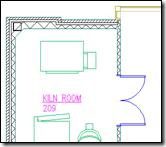
In the figures, the furniture and text were selected to isolate, resulting in the building features to be faded. A lock icon indicates the locked layer when the cursor rolls across a locked layer.
Thank you for sharing Michael!
Check out Michael’s website for more great tips and tricks and resources.
http://autocadtrainerguy.com/
If you have a tip you want to share with other readers of this Between the Lines blog, please email them to me. BY the way this tip also applies to the soon to be released AutoCAD 2009.
-Shaan

An awesome tip and a new CAD-related site I haven’t seen before, .. thanks for sharing Shaan!
I also kicked this post over at:
http://cadkicks.com/adkautocad/AutoCAD_2008_Layer_Isolate_Settings_Tip
You can turn off the annoying message by setting your “expert” to “1”
PING:
TITLE: I Better Get Busy, I made the Autodesk.com Home page 😉
BLOG NAME: Between the Lines
I have been swamped with the Autodesk 2009 product line launches, the beta projects wrapping up on many of the products, took a week off and went hiking and shutterbugging in Southern Utah, and then I got sick. No time
AUTO CAD 2006 – WHERE IS LAYER ISOLATE TOOL
PLS SHOW THIS
Nifty feature, I never knew about it.
You should also mention that there is a further option pertaining specifically to paperspace viewports, whether you want to VPFreeze or turn off the layers. Before seeing this everytime I tried to LAYISO in a viewport I would get a useless viewport in return.
I guess it could be useful if you use LAYISO to set up the viewport, select the layers you want and freeze the rest. I never quite know what layers I want, and which I want to freeze. I guess its building up or cutting down. I also guess I’m rambling by now.
Is it possible to have the Layer Isolate command Freeze instead of turning OFF the other layers?
I would like the command line that will turn a layer off by clicking and object for a toolbar button. I spend a lotta time opening the layer dialogue window to switch layers visibility. AND how do I turn off the annoying windows that tell me what I just did like “the current Layer is turned off”
most annoying
I have a “Make object layer current ^C^C_ai_molc do you know of something similar???
thanks for any help.
René Wortel
519 421 2280
this may be a stupid question, but how do you isolate a layer using command line text only? I type layiso, hit enter, and then it asks me to select obejects. how do I select the layer to isolate using only text commands? Thanks to anyone who can help me on this….