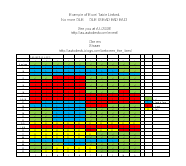
OK the main point is not really winning at the card game Blackjack, but the table in this AutoCAD Tables in AutoCAD example does show the best moves when playing at the Blackjack card table. Autodesk University 2008 is in Shanghai China, Yokohama Japan and Las Vegas Nevada. In Las Vegas there is gambling available should you choose to gamble. I don’t gamble when in Las Vegas myself except maybe a couple quarters in a slot machine. OK Shaan get on with it…
I created a Microsoft Spreadsheet showing what to do when the dealer’s hand is showing and you have a certain pair of cards in yours. This table does even the odds a bit, but in most gambling the odds are in the casinos favor no matter the skill.
Now at this point I could copy the Excel cells and using Paste Special in AutoCAD paste as AutoCAD Entities and end up with a native AutoCAD Table with the formatting, values, and the underlying formulas but I am not. In this example I want to show a cool and time saving tip and new AutoCAD 2009 feature. I want to have the spreadsheet linked between AutoCAD and Excel so if I update either they are synched up. I don’t want to use the paste OLE object into AutoCAD as OLE is one of those things in Windows that can be a real pain. So we will use the new AutoCAD 2009 ability to create a Table from a data link to Excel. Note you must have Excel installed.
So I use the DATALINK Command. You can also select the Data Link option from the Tools menu.

I will then use the Data Link Manager to give the Data Link a name and then browse for a Excel spreadsheet.


I then can preview the spreadsheet and use the path or a relative path. I also selected a range in the spreadsheet.


Now I use the AutoCAD TABLE Command and select the Insert option “From a data link” and select the Blackjack Table I linked to and you can preview the table.

Now place the Table in your drawing. You can now edit the formatting and as I mentioned update the table from Excel using DATALINKUPDATE command. without having to resort to OLE which is a gamble itself. 😉
That’s it!

I printed a DWF for reference and also placed one on the free Autodesk Freewheel where you can view a DWF without installing anything and works on any platform that can run JAVA in a browser.
Shaan’s Blackjack Table DWF Here
Or click the below image to see the DWF in Autodesk Freewheel.

Autodesk Freewheel is a free web service to share 3D and 2D designs without installing any software. You can also use the Autodesk Labs Technology Preview 3D/2D ShareNow Add-in for AutoCAD, Inventor, Revit, and Design Review
All you need to do it ad your path to a DWF to the URL for Freewheel or upload your DWF to Freewheel either way it is free and results in a zero client DWF viewing.
All you need to do is point Freewheel at your DWF you have on the web
Now I need to get back to writing my many presentations and packing for travel to Istanbul Turkey this week.
Cheers and I hope to see you at one of the AU’s this year,
Shaan

This is a really excellent new feature and one which has been overlooked by many (including me) when assessing the virtues of 2009. Although not everything comes across perfectly in every case, it’s still a pretty decent first attempt. In any case, anything that means avoiding fighting with the various OLE pains has to be good news.
Thanks a million Shaan! Your blog has bailed me out of a bind at work for the umteenth time. It’s great to have this kind of knowledge being shared openly with the technical community. Word UP!
Andrew,
Thank you for the kind words. It is comments like this that make it all worth it.
Thank you for reading the blog.
Best Regards,
Shaan
i will have to use this. this is such great information.
Shaan,
Is there a way that I can link exist. CAD table to a new Excel Spread Sheet?
Excellent, A lot of my time is been saved by this. Thanks a lot.