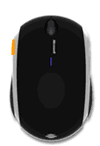
I wanted to provide a tip for anyone else experiencing a problem with a new mouse and it not behaving as you would expect.
 I recently purchased a new Microsoft Mobile Mouse 6000. This is a great mouse and due to the blue optical sensor will work on almost any surface from the shiny marble counter to the matted hair head of your pet dog. What I found is the default Windows system driver prevented me from using one of the mot important AutoCAD features developed in AutoCAD 2000, and that is the double-click mouse wheel to zoom to the drawing extents. I don't know how I could live without that feature which ranks up there with UNDO for me.
 After being frustrated at the lack of double-click extents, I found the solution. I had to install the latest mouse driver in this case the new IntelliPoint software driver.
I then set the mouse-wheel for double click instead of the new default “Flip” function and all was again well with my double-click wheel to drawing extents.
Don't forget the other mouse tips I posted awhile back on the mouse wheel scroll direction or the Zoom speed.
Perhaps you use AutoCAD and Autodesk Inventor and prefer the direction Inventor uses for the mouse middle wheel transparent zooms.
You can change AutoCAD to match the direction Autodesk Inventor uses by changing the AutoCAD System Variable ZOOMWHEEL at the AutoCAD Command line.

AutoCAD by default when moving the wheel forward zooms in on an object while Autodesk Inventor zooms out when moving the mouse wheel forward.
Setting ZOOMWHEEL to 0
Moves wheel forward zooms in; moving wheel backwards zooms out.(Default)
Setting ZOOMWHEEL to 1
Move wheel forward zooms out; moving wheel backwards zooms in. (Like Inventor)
Have you ever felt like the middle mouse wheel zoom is too fast or too slow in AutoCAD?
It can depend on the scale of the drawing and objects you are working on, or perhaps even your mood. This speed of the zoom in and out is controlled by a system variable named ZOOMFACTOR. The default of the system variable ZOOMFACTOR is 60. You type ZOOMFACTOR at the AutoCAD command line and then changing the value. My preference is 40 so that I am not zooming in too fast of increments.
This is another one of those little settings that allow you to make AutoCAD more tailored to your use whether you like warp speed zooms or turtle slow zooming with the mouse wheel.
You can also set someone else's ZOOMFACTOR to 3 just for fun or torment but be sure after watching them struggle to set it back. More Office AutoCAD Pranks.
Cheers,
Shaan

Thanks for the tip about the double click wheel. I never knew about that.
Thanks for the heads up. I was having the same trouble but with a Logitech mouse so I just downloaded the new version of Setpoint from Logitech and it solved all my problems. When I went to push down on the scroll wheel I would get the Vista Flip option instead of pan. This happened the first time when I was teaching boy I looked really confused then.
If you’re using Revit, you’ll encounter another issue. Holding down the wheel no longer PANS; until you apply this solution. Cheers! Daniel Hughes | Revit JobCaptain
One of my favorite tricks on some of my fellow users is the MBUTTONPAN variable that switches the Pan to OSNAP Overrides. A restart and unplug the mouse later I tell them the variable.
I have the similar issue too. Now I could work correctly as what I wished. Thanks!