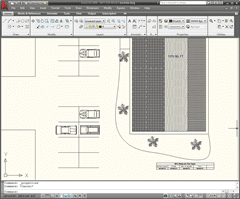
This is an oldie, but popular goodie and question from this blog.
StarBacks BBQ Floor Space Planning with AutoCAD FIELDS
So I love barbeque. People that know me can attest to this fact and I have cooked barbeque baby back ribs all over the world, even in Germany where I was paid in fine beer and compliments. Anyways I wanted to quickly demonstrate a valuable method to show the area of a Hatch object automatically as well as include the areas in a table, then with a total and when the hatched areas are changed so are the area values in the table.
So in my faux dream barbeque restaurant “StarBacks” I wanted to show the areas of the customer dining and bar area, prep and pit area this is where the pit smoking of the meats is done with fine oak wood smoke, and then the kitchen area.

I use the FIELD command and select Object from Field Category and then select the Hatch.

Now after selecting the Hatch select the Area Property and then format the value to the decimal and precision you want and insert it.

After doing this for the three areas I now have three Field text objects linked to the areas of the Hatch objects.

I can create an AutoCAD Table with the TABLE command and then set my titles for the areas.

Then in the cell I want the areas shown I use the Object from Field Category and select the Field text and Object property of Contents. Now the cell is linked to the Field text that is linked to the area of the Hatch. Got it, good.

Of course I would like a total of the entire square footage (or meters for those lucky enough to make metric their standard). In the cell I right-click and select Insert > Formula > Equation.

Now it is just like in Excel and I enter A3+B3+C3 and I get the total of those three cells. I could also use the SUM option.

And there we go after some formatting of the precision to eliminate the trailing zeros I have a nice table all dynamically updating when the hatched areas update. So when I stretch the dining or bar area to increase space for more people (inevitable) the areas all update.

Showing the final floor plan and table. You could use this in so many ways such as material planning, retail space allocation, and more. Fields are powerful and you can link them to attributes like lights in a plan and have a table update with the quantity and type of light including cost from the attributed light block. Fields are powerful.

You can use this same technique for attaching fields to other objects such as showing the length of a polyline.
Cheers,
Shaan

We have been using tables for room finishes & door schedules. I never thought about Areas. Now we will be using the area fields, thanks to your post. Read Ya Later -KLYPH
This is a great tutorial.
Thanks for posting.
Is there a way to show quantity of a block in a field?
For example, can i show how many bolts i used in a table field?
Thinking outloud here… One could total blocks in Table then reference that cell in a Field. I need to verfity this work up a tutorial.
Thank you for reading and the question,
Shaan
Found the best way to accomplish this at least as I explored. I will write up a tutorial in the next few days.
Essentially you use a block with an attributes.
* Use the Data Extraction Wizard to output the block attribute and count to a table.
* Then you can refernce that Table cell in your drawing with a field.
Cheers,
Shaan
OK I posted on way to accomplish this.
http://autodesk.blogs.com/between_the_lines/2010/03/autocad-tip—reference-a-block-count-in-a-field.html
Cheers,
Shaan
Dear Shaan,
thanks for very useful tip with area fields. However I am not able to find out why the autocad table has problems summing the the area fields objects in cells it always comes as ####. The table works with regular numbers but not with field object area. Any idea where the problem could be?
Could it be you have a space in your cell, too large of a font or number to display thus reverting to ####? Have you tried UPDATEFIELD?
Hard to guess without more details or a sample.
Best Regards,
Shaan
Richard,
I have found in AutoCAD 2013 that the above method doesn’t work. However, when you are assigning the field in the table if you select the hatch instead of the text, then you can add them together and get a sum.
Not sure what changed in 2013, but I had the same result you did.