Guest post by Paul Munford (The CAD Setter Out)
Have you been Plotting or Printing Adobe® ‘Portable Document Files’ from your AutoCAD drawings? Check out AutoCAD’s Export to PDF tool for a simple alternative.
The ability to ‘Plot’ PDF files directly from AutoCAD has been on the AUGI wish list for many years. PDF remains the standard ‘Electronic’ file format for drawing exchange in the AEC Industries. PDF support was finally added to AutoCAD in 2009.
If you have worked with previous versions of AutoCAD before release 2009, then you may have added a ‘Virtual’ PDF plotter to your computer. To create a PDF you would have had to send your Plot file to this Virtual Plotter, which would create a PDF instead of a paper plot.
This feature has now been built directly into AutoCAD. You can send your plots straight to AutoCAD’s DWG to PDF.pc3 Plot configuration file to create your PDF’s.
But there is a faster and easier way…
How to ‘Export’ PDF files from AutoCAD Drawings in two simple steps.

Exporting PDF files from an AutoCAD drawing is a simple two step process:
- Click the export button
- Type in a file name (optional!) and hit the ‘Save’ button.
It’s as easy as that!
How to Export PDF files from AutoCAD drawings – in a little more detail!
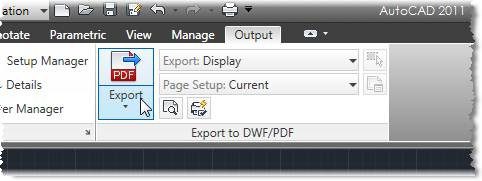
The Export to PDF command can easily be found on the ‘Export to DWF/PDF’ panel of the ‘Output’ tab.
If you are not using the Ribbon, you can export from the command line by typing ‘EXPORTPDF’.
This will open the ‘Save as PDF’ dialogue, where you chose where to save your PDF, and what you want to call it. Click ‘Save’ and you are done!
![clip_image002[4]](https://i0.wp.com/realshaanhurley-vylag.wordpress.com/wp-content/uploads/2025/10/951b8-6a00d8341bfd0c53ef0147e2c0dc70970b.jpg "clip_image002[4]")
To make sure your PDF plot looks how you are expecting it to, make sure that your Layout is set up to plot from your regular plotter first. If you set this up in your template file – you should only have to do it once.
Fine tuning the Export to PDF process
If the two step process is to simple for you – there are a few more options you can use to tailor this process to your needs.
![clip_image004[6]](https://i0.wp.com/realshaanhurley-vylag.wordpress.com/wp-content/uploads/2025/10/6b896-6a00d8341bfd0c53ef014e86402a36970d.jpg "clip_image004[6]")
The Export dropdown allows you to choose whether to Export the current Layout or all layouts in the file.
If you are in Model space, you will also have the option to choose ’Display’, ‘Extents’ or ‘Window’ plot.

The Page setup dropdown allows you to use the current plot settings, or override them.
If you chose ‘Override’ the PDF Page setup Override dialogue pops up, which contains a simplified subset of the usual Plotting options.

 The layout and magnifying glass Icon brings up the Plot Preview window – so you can check out how your PDF will look, before you plot it.
 The printer with Lighting strike and check box pops up the PDF Export options dialogue.

This dialogue allows you to control whether your Layer information is included in the PDF and how the lines merge on plotting. You can also override the precision of the Vector’s in the PDF file here.
The two options I use most frequently are the default file path Location and the Type.
The Default File path Location saves you having to tour around your folder structure each time you Export a PDF.
The Type drop down gives you the choice of Single-sheet or Multi-sheet PDF’s. The Single-sheet option will create one PDF per layout. The Multi-sheet option will create one PDF which contains all your layouts.
Back to the Save as PDF Dialogue box
 If you don’t remember to set these options before you hit ‘Export’ – don’t worry. The same set of tools is available to you inside the ‘Save as PDF Dialogue.
The ‘Current Settings’ panel gives you some feedback on where you are in the process. You can click the options button to bring up the ‘Export to PDF’ dialogue.
You also have the option to adjust whether you want to export the current layout, or all layouts in the file, and you can override the plot settings from here as well.
Finally, there are a couple of options that are not available elsewhere – you can choose whether to add a plot stamp to your PDF file, and you can choose whether you want to see your resulting PDF in Adobe reader when the job is done.
What will you do with all that time you saved?
Although plotting your PDF’s gives you a great deal of control over the final output, Exporting your PDF’s is quicker and is simple to set up and use. So what will you do with all that time you saved? Shh, I won’t mention it to your Boss!
Further reading:
You can find out more about the EXPORTPDF command in the AutoCAD 2011 Online help.
There is an AutoCAD Printing and plotting thread on the Autodesk discussion groups.
About the CAD Setter Out.
Paul Munford is a Joinery draughtsman (a ‘Setter Out’) for Beck Interiors, a UK based international Interior Fit out contactor which specializes in Museum Interiors.
Paul uses AutoCAD and Autodesk Inventor to create manufacturing ‘Workshop’ drawings day in – day out.
In his spare time Paul writes the ‘CAD Setter Out’ Blog and wishes he got out more.
If you would like to publish a guest article on this blog about AutoCAD or Autodesk Technology, please email me at shaan@autodesk.com. This is a great way to be seen by over 20,000+ people daily for free. The idea is to share tips and articles that benefit Autodesk product and technology users as well as promote you, the expert and your, consulting, books, looking for a job, or promoting your blog.
Thank you for the post Paul.
-Shaan

Hi Paul/Shaan,
On my machine (C3D 2011 V2, XP-SP3, 2.83GHz quad-core), it tends to take 1½ to 2 minutes to print a single layout.
Is this how long it takes you?
PS: It looks fine in a PDF viewer, but when it prints out the background aerial is fine, but corridor/text/leaders are all over the show.
Well … you said “IN ONE CLICK” … that was a lot of clicks since the first one … So to be in a single click … just do the EXPORTPDF , type the name of the file and hit the “Save” button … but, as anything in Autocad … either .. it could not be done in a single click. 😀
Hi! I do not have the’output’ tab, is it because my AutoCad was not installed correctly?
Thanks!
Melanie
I use http://share.kagoon.com which converts any document type to html and stores it online without ads or requirement to install anything.
This PDF tool is good for the most part. I use ‘exportpdf’ and it is then saved into the folder of my choice.
However, when I open the pdf to check the ‘plot’ after I have used Arial.ttf as the mtext font, I get this message:
“Cannot find or create the font ‘ArialMT’. Some characters may not display or print correctly.”
This is because, for some unknown reason, the symbols of %%C,%%D, and %%P, are not shown at all and leaves the whole line of text shown as:
“………………………………….”
This applies to Arial Baltic.ttf, Arial CE.ttf, Arial CYR.ttf, Arial Greek.ttf, and Arial TUR.ttf.
I can, however, use Arial Narrow.ttf and Arial Unicode MS.ttf
I can, of course, use another font entirely but most companies use Arial as their standard font!
The solution is to change the encoding of your .DCL file to UTF-8.
You can also search support.autodesk.com
thanks a lot..it really easy with 2012..
WHen I done convert it to PDF, the result of the file, the image is not in the center, always on the left, I can’t set it to center, like when we do plotting, we can set “Center to Plot”. Any idea how to set it?
Ya the function is good…but i tried and find there is some bug/error…
1) althought i have follow all the step mentioned above and selected “all layout” and “multi-sheet” but the result of the files is only 1 layout then i need to do restart again select “all layout” then only it will combine all layout into 1 pdf files
2) the pdf result is colour althought i have set my layer setting to black….
can anybody help/advise on this?? thks 🙂
You mention that this was added with Acad 2009, but it looks like you are using Acad 2011 (and later in the post, you refer to the Acad 2011 help). I ask because I am running 2010, and EXPORTPDF is not a recongized command, nor do I have the Output tab. Any insight would be much appreciated!
It was definitely in base AutoCAD 2010 and was also included as a extension in AutoCAD 2009.
You can even see the command in the AutoCAD 2010 Help:
http://docs.autodesk.com/ACD/2010/ENU/AutoCAD%202010%20User%20Documentation/index.html?url=WS1a9193826455f5ff-4855151011e1d0ec60d-34a1.htm,topicNumber=d0e241169
Hi Paul/Shaa
i need some documents a bout auto cad p/s attach
Semere,
Thank you for the comment but I am not sure I understand what you are asking for.