Updating and this popular post from a year ago.
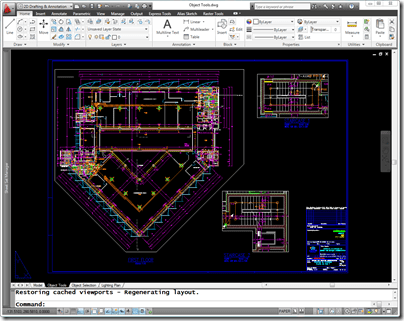
As a follow-up to the posting How to Change the AutoCAD Layout Background Color in response to a Twitter request, I showed how to change the Layout paper background color. But what if you just want a solid black background in Layout so that it looked like Modelspace or something easier on your eyes, here is the tip.
The AutoCAD default white Layout background with paper and printable area background.

If you want to change you AutoCAD Layout background color from the defaults go to Options>Display. Now uncheck the first four Layout Elements.


Now select the Color button to change the AutoCAD UI element colors.

1. Select Sheet Layout
2. Select Uniform Background
3. Select Color Black or whatever color you want the entire Layout background color to be. In my case I am setting it to black like Modelspace.

Select Apply & Close and you are done.

Now you have a complete single color background Layout.

Hi Shaan,
What we really need is to leave the Paper Space background white, with just the viewports black. So visually this would be like a white paper sheet with windows through to the black Model Space environment. This seems like a really obvious and intuitive option, at least to me…
I have asked Autodesk this a few times, but why are the default colors not Black? I know of no one that uses the stock colors? And then in 2011 they changed it to some kind of a weird light transparent cream color that appears to make everything slightly out of focus? Real annoying to the eyes!
Bill
The colors were changed over the years based on customer usability studies and feedback. Many customers felt the flat black screen was too dated and preferred something more modern and lighter looking. I used to prefer the black background but have really gotten used to the current default colors. The nice thing is no matter your preference, you can setup AutoCAD the way you prefer it even make it retro to a style including full crosshairs, blue drop down menus, black backgrounds, and more.
I have never heard a request for white Layout with black viewports. Not even sure this is possible but will ask around.
Hi,
Awesome instructions, but i have the Mac version AutoCAD 2012,
under “TOOLS” there’s no “OPTION”
Please advise!
Thanks a lot
Thank you.. this was helpful
Thanks for the intructions. It worked!!!!!
Regards,
Eric
thanks alot
Thanks Alot ………..
Hi
I have autoCad 2008 and 2010 programs. Recently I began encountering a problem with paperspace. Whenever I try to view my drawing model in paper space in 3D wireframe, 3D hidden, conceptual or realistic views the space becomes black – I cannot see the model anymore. However I can still see the model in 2D wireframe in paperspace.
How can I fix this problem?
Please help!
Ren
Ren,
It could be a couple problems but first check to make sure it is not specific to that drawing and run AUDIT and a RECOVER on it as it could be a file corruption. Also check the same drawing on another machine to rule out hardware.
Regards,
Shaan
Thanks for the feedback Shaan.
However the problem still persists after audit and recovery – and all the drawings are affected. I will check on another machine as you advise and let you know how it went.
Regards.
Awesome! Thanks a lot
dear sir
how to use substract command in auto cad
thank
Where are the options?
Use the AutoCAD OPTIONS command at the commandline.
Thanks