
AutoCAD provides the ability to assign how things plot/print such as lineweight, color, dithering etc. using a feature named Plot Styles. You have the choice to use the default color-dependent or named plot styles, but your drawing can only be one or the other.
- Color-dependent plot styles (CTB)
- Named plot styles (STB)
It can be debated as to which is better but I will leave that for you to decide which works best for you and the people you exchange DWG files with. About 95% use CTB most likely because that is not only the default but the way they have always done it. If you want to share your reasons for using one plot style method over the other please feel free to post a comment to this blog post.
AutoCAD comes with drawing templates for both CTB and STB drawings. If you need to convert an existing drawing from one to the other you can use the following commands at the AutoCAD commandline.
To Convert Drawing Plot Style Modes:
To convert a CTB mode drawing to STB mode or a STB mode drawing to CTB mode use the command CONVERTPSTYLES.
To Convert Drawing Plot Style File such as Shaan.ctb to Shaan.stb:
To Convert a CTB Plot Style file use CONVERTCTB. Dont let the name fool you, CONVERTCTB will work to convert a CTB to STB to a STB to CTB.
More on the two plot styles:
 The majority of AutoCAD users are using the default plot style of color based plot styles also known as color-dependent plot styles (CTB). CTB plot styles has been the default since the early days of AutoCAD supporting plotting/printing. It comes from the days when we had pen plotters and there was 255 numbered pens available which correlated to the physical pens. With a CTB plot style table you can specify the color, lineweight, linetype, screening, and so on that objects of a specific color will have when plotted.
 With AutoCAD 2000 came the style based plot styles or named plot styles (STB) option was added allowing you to assign plot styles including color, lineweights, screening to an object regardless of colors or layer set to the object. Some users mention the benefits of STB are less pen styles to manage or they can have project phased styles.
AutoCAD Online Help on Plot Styles Use a Page Setup to Specify Plot Settings
Some visual flashback on the evolution of color in AutoCAD
Here is the early AutoCAD ACI colors.

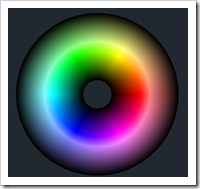
The AutoCAD Color Wheel. 
The current True Color Wheel with 16.7 millions colors. Luckily we do not create 16.7 million pens in the CTB plot style dialog! 
Cheers,
Shaan

This is very interesting. I can not believe that so many people still use CTB instead of STB. STB is so flexible that I would never change to CTB any more. But as you have written, there are so many users who don’t need this flexibility because they only use greyscale. As soon as you have and want to bring colour into your drawings you should work with STB or truecolor.
Hi Shaan,
You instructed your readers to use the “CONVERTCTB” command to Convert a CTB drawing to STB. This command doesn not perform the conversion, it converts a CTB file to an STB file for color mapping purposes during the conversion.
You would then use the CONVERTPSTYLES command to convert the CTB drawing to an STB drawing and are prompted to select the previously created STB file.
The same CONVERTPSTYLES command is also used to convert from STB to CTB. The CONVERTPSTYLES command detects which drawing type is current and converts to the other type.
You are very correct thank you. I got half in thought in the blog post and messed it up in the process.
I have now clarified the two commands which are definitely different in that one CONVERTPSTYLES converts the plot style mode of the drawing and the other CONVERTCTB converts the actual plat style files.
Thank you for keeping me on my toes and providing correct instructions and information. I really appreciate it. I should have not been so quick in writing the post before the holidays since I was on the team that developed these commands.
Best Regards,
Shaan
There are several instances where I have found STB to be less flexible. For example, if you use different shading (or boldness) for different portions (sub-entities) of a dimension or multileader or even portions of text. How would you accomplish this, if the property is set by the layer or entire entity? With CTB, you just specify that sub-entity to be a specific color.
Any thoughts on file size? I work with a drafter who says stb plot styles create larger files than ctb plot styles. The files we create are 2D files plotted grayscale.
Nancy,
I am not sure I agree with there being a difference in the resulting file size a plot file size if you are comparing true apples to oranges.
Cheers,
Shaan
CONVERTCTB only works in one direction, CTB to STB, and not the opposite, which you say in your blog. There is no command to convert a STB file to a CTB file.
Kent,
You are indeed correct, and I have edited. You can convert a drawing from color based to named and named back to color based but the actual plotstyle files can only be converted from CTB to STB using CONVERTCTB.
There used to be a method/hack but the tool is now gone which essentially allowed you to convert a plot style to PC2 then you could reconvert that to CTB.
Thank you
You can change them in Dimension Style Manager. Instead of choosing the color, you can assign the pen width (Lineweight) to every part i.e. text, leader, ticks, etc of dimension, instead of “Color.” Also, if you want to change the specific line, you can change the lineweight from “by Layer” or “By Block” to he thickness of the line in property. So it’s pretty much the same. But drawings with STB looks prettier because you can use the same color for the different objects with different pen width and/or you can use the 16.7 million colors without creating 16.7 million pens 🙂