A few years ago I posted AutoCAD Free Bonus Tool Drawing Tabs "MDITabs" which when loaded in AutoCAD 2010-2012 provided a horizontal drawing tab for each open drawing file. This AutoCAD Bonus Tool was very popular among AutoCAD users working with multiple drawings open. Now with the launch of the new AutoCAD 2013 and the new Autodesk Exchange App Store there is a new version of the Drawing Tabs app compatible with AutoCAD 2013, and yes it is still FREE.
The new Drawing Tabs App for AutoCAD 2013 in the Autodesk Exchange App Store


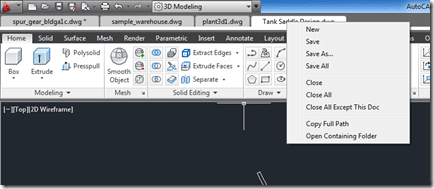
Here you see the new AutoCAD 2013 with the Drawing Tabs App loaded and showing tabs for open drawings.

When you right-click context menu on the drawing tab you get options:
- Create New drawing
- Save drawing in the selected tab
- Save As drawing
- Save All drawings
- Close the drawing in the selected tab
- Close All drawings
- Close All but selected drawing
- Copy the drawing path
- Open the containing folder’

There will be a growing selection of apps for Autodesk products and I would encourage you to explore the Autodesk Exchange App Store.
Cheers,
Shaan

Will this work with AutoCAD LT – either 2012 or in 2013?
This is only for the AutoCAD based products listed on the Autodesk Exchange App store and not AutoCAD LT.
Regards,
Shaan
will they ever add the ability to move the tabs around? I prefer to have my tabs at the bottom, near the layout and model tabs
Splendid app! This is so much better than relying on the Windows 7 preview style QVdrawing command.
Thank you for the feedback. There are no set plans for the future of this free app.
Regards,
Shaan
I still say this tool is superior to qview and should be OOTB
How to remove this app? I installed it but now i do not want it
You can use the Exchange App Manager or simply uninstall the App in the Add/Remove Programs in Windows.
Thanks for updating the tabs for 2013 🙂
I’ve noticed a bug where it doesn’t always show which drawings are read only. I can’t reproduce it with any consistancy but when I open up a drawing read only it doesn’t say “- Read Only” after the drawing name on the tab. But some times the “- Read Only” appears after a while on the tab.
For example at the moment I have 3 drawings open, 2 read only and one for editing. Only one drawing has “- Read Only” on the tab, the other one read only drawing doesn’t. (Both read only drawings show read only in the autocad title bar, just not on the tabs)
Anyone else have this problem?
Is this version compatible with previous versions of ACAD???
Chris,
This version is specific to AutoCAD 2013. If you want older release compatible version please see my old post http://autodesk.blogs.com/between_the_lines/2009/04/autocad-free-bonus-tool-drawing-tabs-mditabs.html.
Regards,
Shaan
When opening Autocad by
“C:\Program Files\Autodesk\AutoCAD 2013\acad.exe” /product ACAD /language “fr-FR” /p “Test” /b “D:\toto.scr”
tabs do not appear on the screen.
Problem with .Scr
Not really sure what your script is doing. I would suggest you contact the app feedback email listed for the Drawing Tabs.
AutoCAD.apps@autodesk.com
Regards,
Shaan
Does anyone know if there is a way to configure where the tabs are placed. In the screenshot is shows the tabs above the ribbon. However, after I installed they are located under the ribbon. Ideally, I would like them placed below the drawing window/command line.
Thanks in advance
I have used this tool for years and it is great. The small bug I have found is that when I open a file it does not open it at full size it opens in a”normal window”. I have to click the box in the border to get it to maximize. Any ideas?
George,
It could be the Tab is taking the space you were expecting to be used vertically. I would suggest contacting the support team for this App. AutoCAD.apps@autodesk.com
Best Regards,
Shaan
Shaan, I know my explanation is not doing the issue justice. Basically if I open a file from AutoCAD it opens Maximized in the application window. If I open a DWG by double clicking on a file it opens as a “normal” window within AutoCAD event though AutoCAD is maximized.
I have a screen shot to explain I’ll send that to the support team.
As I said I’ve used it for years and it’s a great tool. They really should just build it in after all this time LOL.
Shaan, Brilliant app! So much better than QV and almost as good as DocBar was… I know you can’t play with the docking of the tabs so I can live with it being at the top, but I would love to see the open files automaticcally arranged in alphabetical order rather than the order they were opened.
Then it would be just as good as DocBar was from my point of view.
I used (and liked very much) prior versions of MdiTabs and had a little LISP routine to switch On or Off the tabs using arxload/arxunload.
It seems to me it no more works with this release (even usin .NET DynamicLinker.LoadModule/UnloadModule).
I used and liked the previous version of MdiTabs. For these I wrote a little LISP routine to swith On/Off the tabs using arxload/arxunload functions.
It seems to me that it no more works with this new release (even using .NET DynamicLinker.LoadModule/UnloadModule methods). Unload works fine, but when I try to reload, the arx is loaded and the tabs do not display.
Any idea ?
This utility is excellent and really should be a standard part of AutoCad, like many regularly used add-ons over the years. Thanks for making it available for AutoCad 13.
It is the user feedback that makes tools like this to help out customers. Always request what you need and how you would use it and the next helpful tool may be developed. Your wish, is pur command.
Cheers
Shaan