How can you update and re-path AutoCAD drawing reference files such as other drawing files, fonts, or plot configuration files after a path has changed without launching AutoCAD?
Use the stand alone Reference Manager
AutoCAD drawings can reference several types of external files including other drawings (XRefs), images, fonts, images, PDF, DWF, DGN underlays, and plot configurations. The paths to these referenced files are saved in each AutoCAD drawing.

You can locate the Reference Manager from the Windows Start Menu > Programs > Autodesk > AutoCAD 20xx > Reference Manager
Note: this tool is not included with AutoCAD for Mac.
You can load a great deal of drawings into the Reference Manager and verify all references are found or change paths.
On opening a drawing with references you can choose to show all reference files or just the first level of references.

You can search, select all, invert selections, edit selected paths and even use find and replace paths in batch. Identifying and fixing problems or just changing reference file paths is easy!

I can isolate the problem reference files and in this case it is a missing Xref that is now in a new folder. I can click on it and enter a new path, or even browse for the new path.

I can also Find and Paths if for example I was re-pathing all my files to a new network directory or relative paths.

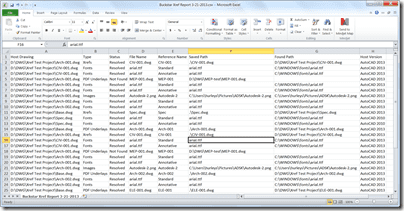
One last bonus is that you export a report of the reference files in CSV or XLS format.

Cheers,
Shaan

Note that you can’t look for or replace with a different file name. This only allows you to change the path. I’ve had users try to sub out FileA.dwg for FileB.dwg
Yes, paths only.
Most of the time when I use this, it says it found references in another path. Yet there is no option to tell the program “yes thats them, proceed and change the paths with the ones you found.”. I still have to show it. Also there is no replacement option as mentioned. The file names have to be the same. These things are pretty much common sense so them being missing is annoying.
Thank you for the feedback Zeke.