 If you use an AutoCAD based product for 3D work you will have to consider using the UCS to change views to work on the model.
A common question from AutoCAD users when using the UCS is:
”Is there a method to have the UCS command always default to either TOP or WORLD regardless of what view is selected from VIEW TAB?”
This solution was by AutoCAD Test Development’s Chris Miller.
Solution:
If you switch to the AutoCAD Ribbon’s View tab and cycle through the views on the Views panel (Right, Back NE Isometric, etc.) you’ll see the UCS changes with each view.


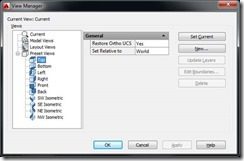
If you launch VIEW (dialog appears) > Expand Preset Views > Select one of the views (like Top) > Set Restore Ortho UCS to No (default is Yes) > OK

Now when you toggle through the views the WCS (default/Top view’s UCS) is retained.
The Autodesk product teams receive several emails from the Autodesk Product Feedback Form. Your feedback goes to the products teams, and they do read them. In many cases team members respond if there is enough detail and time permitting but they can’t respond to every feedback submission, but do try to help when they can.
adskbhsverall

My question regarding UCS is the following.
Is it possible to make UCSICON @ Noorgin
whenever I open new drawing?
Also when working on 3D, I want to shift
quickly from one view to the other, how do I do that?
thanks for the tip
Hello Shaan,
I’m an old school autocad user and set up command line shortcuts for everthing.
I want to access preset views in the command line, i.e. RI = right view… .
Do you know how, or if someone has written a script to do that?
With the VIEW command it takes the command plus a few clicks I would like to avoid.
Thanks,
William Lyons
Here is some lisp to do it for you. You can put this in your startup suite.
(defun c:ri() (command “-view” “ortho” “ri”))